
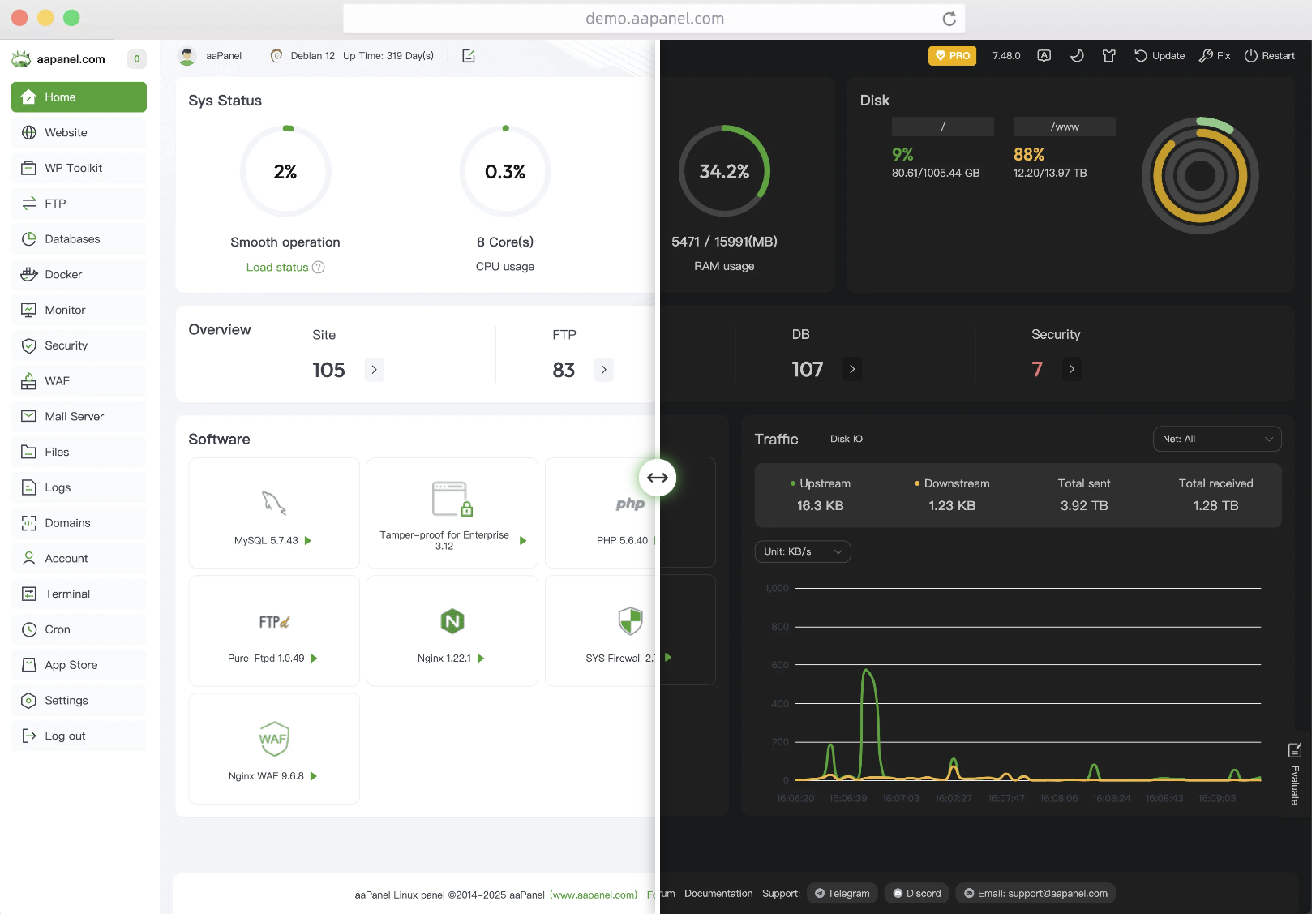
1. Document Overview
This document is a complete technical manual for the installation, configuration, operation, maintenance, and security hardening of aaPanel (International Version) on Velidc VPS. It applies to mainstream Linux systems such as CentOS, Ubuntu, and Debian, covering the entire process from environment preparation to production readiness. It can be directly used for server deployment and technical archiving.
2. Environment Requirements (Official Standards)
2.1 Hardware and System
-
Memory: ≥ 512MB (Recommended ≥ 1GB, ≥ 2GB for production environment)
-
Hard Disk: ≥ 100MB of available space (approximately 20MB for the pure panel)
-
Operating System: CentOS 7+/Ubuntu 18.04+/Debian 9+/Rocky 8+, brand-new and clean system (no pre-installed Nginx/Apache/PHP/MySQL)
-
Permissions: All operations must be executed as theroot user
2.2 Port Opening (Mandatory for Velidc Security Group)
|
Port
|
Purpose
|
Notes
|
|---|---|---|
|
8888
|
Default port for aaPanel
|
It is recommended to change after installation
|
|
80
|
HTTP website service
|
Must be opened
|
|
443
|
HTTPS website service
|
Must be opened
|
|
22
|
SSH remote connection
|
Must be opened
|
|
3306
|
MySQL database
|
Open on demand (intranet access is recommended)
|
3. One-Click Installation (Official Script)
3.1 CentOS System
# Install wget and execute the official installation script yum install -y wget && wget -O install.sh http://www.aapanel.com/script/install_6.0_en.sh && bash install.sh forum
3.2 Ubuntu/Debian System
# Execute the official installation script wget -O install.sh http://www.aapanel.com/script/install-ubuntu_6.0_en.sh && sudo bash install.sh forum
3.3 Installation Process and Results
-
After executing the script, entery to confirm the installation.
-
Wait for 5–10 minutes. After the installation is complete, the unique access information will be output (be sure to save it):
============================================== aaPanel Installation Successful! ============================================== External Panel Address: http://VPS_IP:8888/Random_Security_Path Internal Panel Address: http://Internal_IP:8888/Random_Security_Path username: Automatically_Generated_Username password: Automatically_Generated_Password ==============================================
4. Panel Initialization Configuration
4.1 First Login
-
Access the external address output after installation using a browser.
-
Log in with the automatically generated username and password.
-
Language Switch: Select Simplified Chinese in the upper right corner (optional).
4.2 Web Environment Deployment (Recommended: LNMP)
After logging in, a recommended software package will pop up. Select:
-
LNMP (Nginx + MySQL + PHP) (Performance priority, suitable for high-traffic websites)
-
Version Recommendations: Nginx 1.24+, MySQL 5.7/8.0, PHP 7.4/8.1
-
Installation Method:Quick Install (Fast deployment; compiled installation can be selected on demand for production environments)
5. Security Hardening (Mandatory for Production Environment)
5.1 Change Panel Port (Core)
-
Path: Settings → Panel Settings → Panel Port
-
Change to a port between 10000–65535 (e.g., 28888)
-
Synchronously open the new port in the Velidc security group and close the original 8888 port
5.2 Change Account and Password
-
Path: Settings → Panel Settings → Username/Password
-
Replace the automatically generated weak password with astrong password (uppercase + lowercase + numbers + special characters)
5.3 Enable Panel SSL
-
Path: Settings → Panel Settings → SSL
-
Apply for a free Let’s Encrypt certificate and enable HTTPS access
5.4 Firewall Policy
-
Path: Security → Firewall
-
Only open necessary ports (80, 443, panel port, 22)
-
Close all unused ports (e.g., 21, 3306, etc.)
5.5 Disable Dangerous PHP Functions
-
Path: App Store → PHP Version → Settings → Disabled Functions
-
Keep the default disabled functions (such as
shell_exec/putenv/exec), and enable them on demand
6. Core Service Management (Command Line)
6.1 aaPanel Service
# Start the panel /etc/init.d/bt start # Stop the panel /etc/init.d/bt stop # Restart the panel /etc/init.d/bt restart # Check panel status /etc/init.d/bt status # Change panel password (when forgotten) cd /www/server/panel && python tools.py panel New_Password
6.2 Web Services (Nginx/Apache)
# Nginx Management /etc/init.d/nginx start|stop|restart|reload|status # Apache Management /etc/init.d/httpd start|stop|restart|reload|status # Nginx configuration directory /www/server/nginx/conf/nginx.conf # Website configuration directory /www/server/panel/vhost/nginx
6.3 Database Service (MySQL)
# MySQL Management /etc/init.d/mysqld start|stop|restart|status # MySQL data directory /www/server/data # MySQL configuration file /etc/my.cnf
6.4 PHP Service
# Restart PHP (take PHP 7.4 as an example) /etc/init.d/php-fpm-74 restart # PHP configuration directory /www/server/php/74/etc/php.ini
7. Common Troubleshooting
7.1 Unable to Access the Panel
-
Check if the corresponding port is open in the Velidc security group.
-
Turn off the server firewall:
# CentOSsystemctl stop firewalld && systemctl disable firewalld# Ubuntu/Debianufw allow Port_Number && ufw reload -
Restart the panel service:
/etc/init.d/bt restart
7.2 Installation Failure
-
Ensure the system is a brand-new and clean system without pre-installed web environments.
-
Change the network or re-execute the official installation script.
-
Check if the memory is ≥ 512MB; upgrade the VPS configuration if insufficient.
7.3 Service Failed to Start
-
View service logs:
# Nginx logtail -f /www/server/nginx/logs/error.log# MySQL logtail -f /www/server/data/Hostname.err# PHP logtail -f /www/server/php/74/log/php-fpm.log -
Locate the problem according to the log errors (e.g., port occupation, configuration errors).
8. Uninstall aaPanel (If Needed)
# Stop the panel service and delete related files /etc/init.d/bt stop && chkconfig --del bt && rm -f /etc/init.d/bt && rm -rf /www/server/panel
9. Official Resource Links
-
aaPanel Official Website: https://www.aapanel.com/
-
Official Documentation: https://www.aapanel.com/docs/
-
Service Management Commands: https://www.aapanel.com/docs/faq/Service_Manage_Commands.html
-
GitHub Repository: https://github.com/aapanel/aapanel