
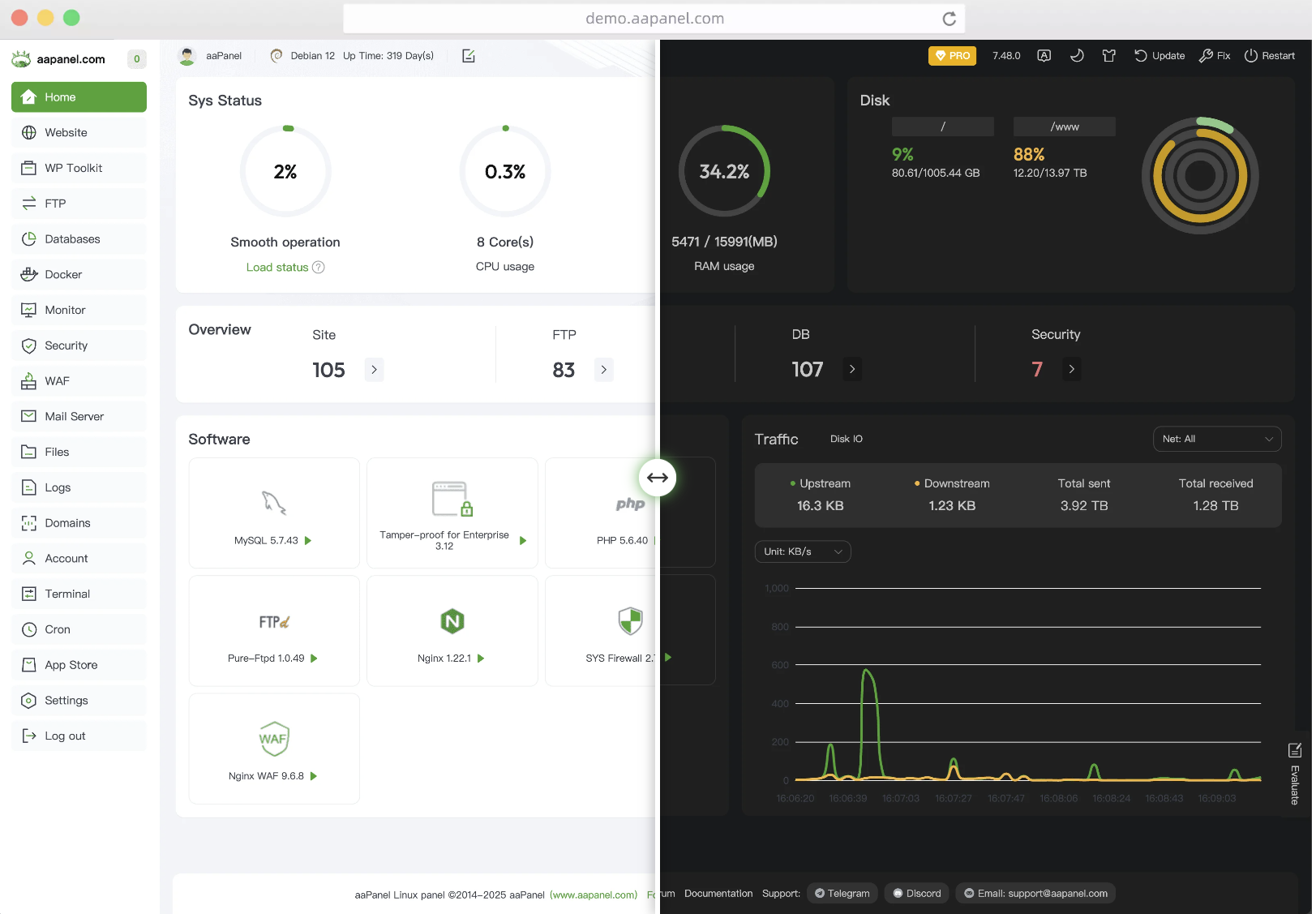
一、文档概述
本文档为 Velidc VPS 上 aaPanel(国际版宝塔) 的完整安装、配置、运维与安全加固技术手册,适用于 CentOS、Ubuntu、Debian 等主流 Linux 系统,覆盖从环境准备到生产可用的全流程操作,可直接用于服务器部署与技术归档。
二、环境要求(官方标准)
2.1 硬件与系统
- 内存:≥ 512MB(推荐 ≥ 1GB,生产环境 ≥ 2GB)
- 硬盘:≥ 100MB 可用空间(纯面板约 20MB)
- 系统:CentOS 7+/Ubuntu 18.04+/Debian 9+/Rocky 8+,全新干净系统(无预装 Nginx/Apache/PHP/MySQL)
- 权限:必须以 root 用户 执行所有操作
2.2 端口放行(Velidc 安全组必开)
表格
| 端口 | 用途 | 备注 |
|---|---|---|
| 8888 | aaPanel 面板默认端口 | 安装后建议修改 |
| 80 | HTTP 网站服务 | 必开 |
| 443 | HTTPS 网站服务 | 必开 |
| 22 | SSH 远程连接 | 必开 |
| 3306 | MySQL 数据库 | 按需开放(建议仅内网访问) |
三、一键安装(官方脚本)
3.1 CentOS 系统
bash
运行
# 安装 wget 并执行官方安装脚本
yum install -y wget && wget -O install.sh http://www.aapanel.com/script/install_6.0_en.sh && bash install.sh forum
3.2 Ubuntu/Debian 系统
bash
运行
# 执行官方安装脚本
wget -O install.sh http://www.aapanel.com/script/install-ubuntu_6.0_en.sh && sudo bash install.sh forum
3.3 安装流程与结果
- 执行脚本后输入 y 确认安装
- 等待 5–10 分钟,安装完成后输出唯一访问信息(务必保存):
plaintext
==============================================
aaPanel 安装成功!
==============================================
外网面板地址: http://VPS_IP:8888/随机安全路径
内网面板地址: http://内网IP:8888/随机安全路径
username: 自动生成用户名
password: 自动生成密码
==============================================
四、面板初始化配置
4.1 首次登录
- 浏览器访问安装完成后的外网地址
- 输入自动生成的用户名、密码登录
- 语言切换:右上角选择 简体中文
4.2 Web 环境部署(推荐 LNMP)
登录后弹出推荐软件包,选择:
- LNMP(Nginx + MySQL + PHP)(性能优先,适合高流量站点)
- 版本建议:Nginx 1.24+、MySQL 5.7/8.0、PHP 7.4/8.1
- 安装方式:极速安装(快速部署,生产环境可按需选择编译安装)
五、安全加固(生产环境必做)
5.1 修改面板端口(核心)
- 路径:设置 → 面板设置 → 面板端口
- 修改为 10000–65535 之间的端口(如 28888)
- 同步在 Velidc 安全组放行新端口,关闭原 8888 端口
5.2 账号与密码修改
- 路径:设置 → 面板设置 → 账号 / 密码
- 替换自动生成的弱密码,使用强密码(大小写 + 数字 + 特殊字符)
5.3 开启面板 SSL
- 路径:设置 → 面板设置 → SSL
- 申请 Let’s Encrypt 免费证书,开启 HTTPS 访问
5.4 防火墙策略
- 路径:安全 → 防火墙
- 仅放行必要端口(80、443、面板端口、22)
- 关闭所有未使用端口(如 21、3306 等)
5.5 禁用危险 PHP 函数
- 路径:软件商店 → PHP 版本 → 设置 → 禁用函数
- 保留默认禁用(
shell_exec/putenv/exec等),按需开启
六、核心服务管理(命令行)
6.1 aaPanel 面板服务
bash
运行
# 启动面板
/etc/init.d/bt start
# 停止面板
/etc/init.d/bt stop
# 重启面板
/etc/init.d/bt restart
# 查看面板状态
/etc/init.d/bt status
# 修改面板密码(忘记时使用)
cd /www/server/panel && python tools.py panel 新密码
6.2 Web 服务(Nginx/Apache)
bash
运行
# Nginx 管理
/etc/init.d/nginx start|stop|restart|reload|status
# Apache 管理
/etc/init.d/httpd start|stop|restart|reload|status
# Nginx 配置目录
/www/server/nginx/conf/nginx.conf
# 网站配置目录
/www/server/panel/vhost/nginx
6.3 数据库服务(MySQL)
bash
运行
# MySQL 管理
/etc/init.d/mysqld start|stop|restart|status
# MySQL 数据目录
/www/server/data
# MySQL 配置文件
/etc/my.cnf
6.4 PHP 服务
bash
运行
# 重启 PHP(以 PHP 7.4 为例)
/etc/init.d/php-fpm-74 restart
# PHP 配置目录
/www/server/php/74/etc/php.ini
七、常见问题排查
7.1 无法访问面板
- 检查 Velidc 安全组是否放行对应端口
- 关闭服务器防火墙:
bash
运行
# CentOS
systemctl stop firewalld && systemctl disable firewalld
# Ubuntu/Debian
ufw allow 端口 && ufw reload
- 重启面板服务:
/etc/init.d/bt restart
7.2 安装失败
- 确保系统为全新干净系统,无预装 Web 环境
- 更换网络或重新执行官方安装脚本
- 检查内存是否 ≥ 512MB,不足则升级 VPS 配置
7.3 服务无法启动
- 查看服务日志:
bash
运行
# Nginx 日志
tail -f /www/server/nginx/logs/error.log
# MySQL 日志
tail -f /www/server/data/主机名.err
# PHP 日志
tail -f /www/server/php/74/log/php-fpm.log
- 根据日志报错定位问题(如端口占用、配置错误)
八、卸载 aaPanel(如需)
bash
运行
# 停止面板服务并删除相关文件
/etc/init.d/bt stop && chkconfig --del bt && rm -f /etc/init.d/bt && rm -rf /www/server/panel